 Skan
How to scan multiple pages into one PDF
Keep scanning before you save. On an iPhone, open the Files app, tap the More button, tap Scan Documents and capture the first page. The scanner stays open, so put the next page under the camera and capture that too. Tap Done only after the last page, then Save. All the pages land in one PDF, in the order you scanned them. Notes works the same way, and so does Google Drive on Android. If you already have one file per page, you can join them afterwards.
On iPhone: one scan, many pages
- Open Files, tap the More button (the three dots) and tap Scan Documents.
- Hold the first page in view of the camera. In Auto mode it is captured on its own; otherwise press the shutter button, drag the corners to fit and tap Keep Scan.
- Don’t tap Done yet. Swap in the next page and capture it. Repeat for every page.
- After the last page, tap Done, choose a folder and tap Save.
Several pages, one PDF
Scan page one
Files › More › Scan Documents.
Keep going
Put the next page under the camera. Not Done yet.
Mind the order
The pages are saved in the order you scan them.
Save once
Done, pick a folder, Save: one PDF.
In Notes it’s the same scanner: tap the Attachment button (the paper clip), then Scan Documents, and all the pages end up as one scan inside the note. Apple describes both in How to scan documents on your iPhone or iPad, and our own guide goes through every step in Files and Notes, with tips for a sharp scan.
Already scanned each page on its own? Join the files
It happens: you tapped Done after page one, or the scans came from different days. You don’t have to scan again.
- In Files, put the scans in the same folder.
- Tap the More button (•••), tap Select and tap the files that belong together.
- Tap the More button at the bottom right and tap Create PDF.
A new PDF with all the pages appears in the folder, and the originals stay where they are. Files doesn’t ask which file should come first, so open the new PDF and leaf through it before you send it. Udfyld’s guide on combining PDF files on iPhone shows what to do when the order comes out wrong.
On a Mac, open both PDFs in Preview, show the page thumbnails in each window and drag the pages from one sidebar into the other. That’s from Apple’s Preview guide, which also warns that Preview saves as you go, so duplicate the file first if you want to keep the original.
On Android, or with a printer that scans
Android: the Google Drive app has a scanner. Tap the camera button, take a picture of the first page, tap Add for each further page, then Done, and save it as a PDF. Google’s steps are in Scan documents with Google Drive.
A printer or scanner with a document feeder: put the whole pile in the feeder. On a Mac, Image Capture scans a multipage document from the feeder into a single file, while pages laid on the glass one at a time each become a file of their own (Image Capture User Guide). The scan software from printer makers differs, so look for the setting that saves all pages in one file. And if you end up with one file per page anyway, join them as described above.
Before you send a long scan
- Scan in reading order. For a double-sided contract that means front, back, front, back, so nobody has to puzzle the pages together.
- Take the staple out. A page folded over at the corner hides the first words of every line.
- Leaf through the PDF once before it goes off. A missing page 4 is easy to fix today and awkward next week, when the landlord asks for it.
- Give the file a name the receiver understands, such as “Lease Sunnyside 2026, signed”, instead of “Scanned Document”.
Change the order or drop a page: where Skan helps
The iPhone’s scanner is fine until page 3 comes out crooked or the pages are in the wrong order. I made Skan for that kind of paperwork. It uses the same camera, and before anything is saved you get a review screen with every page:
- Reorder to drag the pages into the right order, Delete to drop one, Rotate to turn a page that came in sideways.
- The counter under the page, “Page 1 of 2”, shows that nothing is missing.
- Save PDF makes one PDF of all the pages, with text you can search and copy.
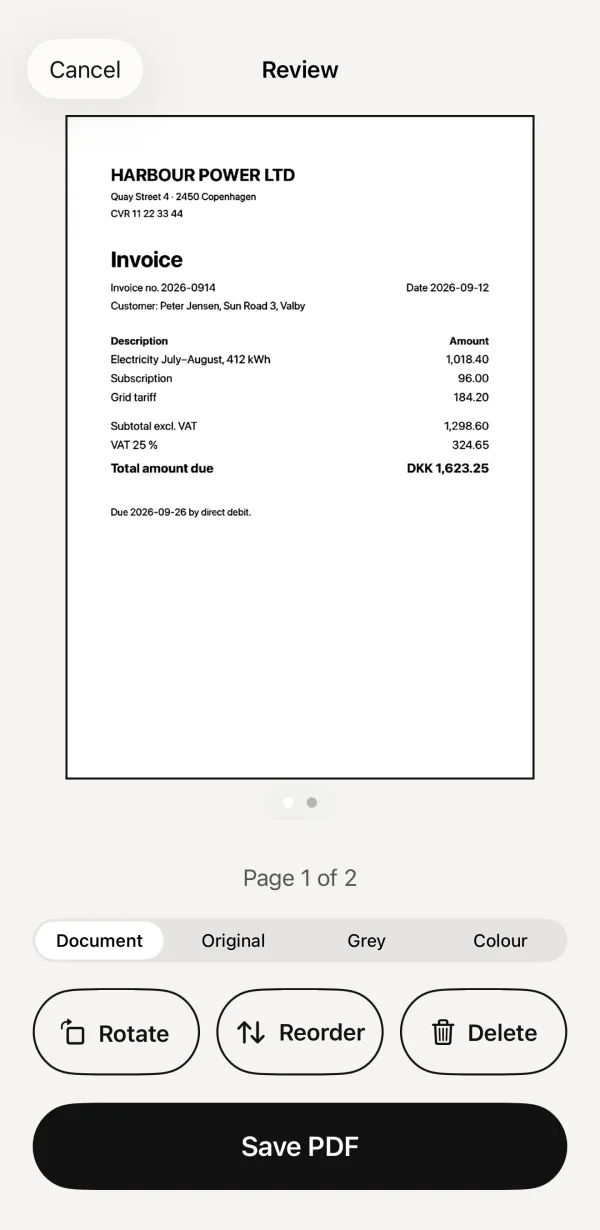 1Every page, counted2Reorder before you save
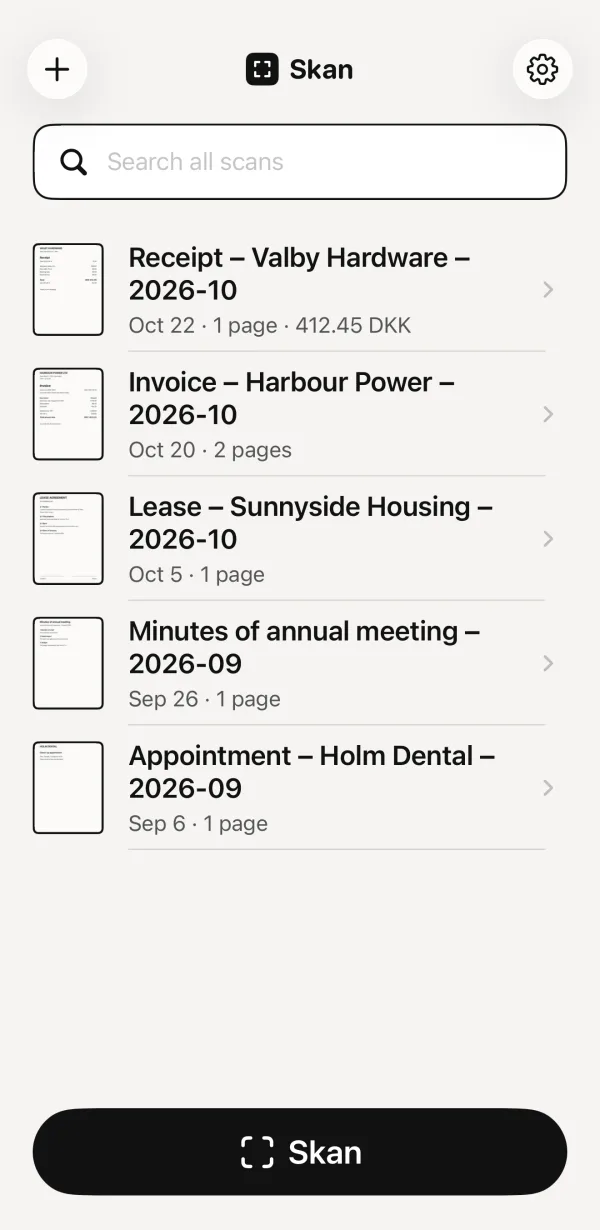 3Two pages, one document
- Every page, counted
- Reorder before you save
- Two pages, one document
Pages you already have also fit in: tap +, then Import from Photos or Import from Files, pick several photos or PDFs, and they open as one document in the same review screen.
Skan costs $1.99, once. It works without an internet connection and has no account, so the scans stay on your iPhone.